







WebVine Blog

We can all host a decent video call, share our screens or co-edit documents in our sleep. But the Microsoft hybrid work toolkit includes so much more and if you’re not leveraging the latest productivity-boosting additions, you’re missing out! 

Here’s a few exciting additions to your Microsoft 365 arsenal both available now and coming soon.  

1) Using Microsoft 365 for Hybrid Meetings 

Microsoft is powering up the hybrid meeting experience with new Technology and capabilities. 

OUTLOOK 
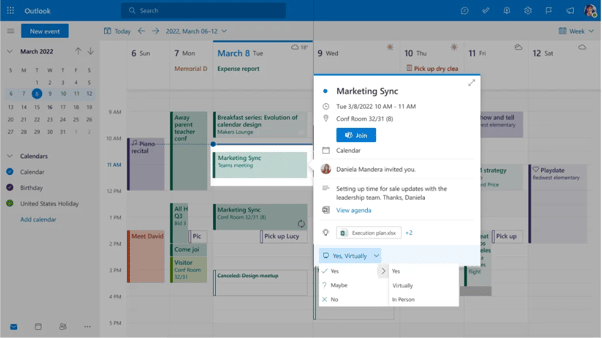
  • Redesigned working hours in Outlook will allow people to set more flexible working hours each day and specify the location from where they plan to work (targeted release June 2022). 
  • New meeting RSVP: join in person or remotely (available Q2 2022) Meeting organisers can see who will be remote or in the office, and plan meeting room technology accordingly. 

MEETING ROOM TECH  

  • New meeting room intelligent cameras enhance the presence of those who aren’t in the room.  
  • AI powered active speaker tracking, in room cameras detect who is speaking with separate video streams.  
  • Profiles of enrolled users can be displayed with people recognition. 
  • “Companion mode” lets people in the room use their phones to access the chat, live reactions and the whiteboard. 
  • Apple CarPlay – join meetings hands free using Siri within the car 

TEAMS MEETINGS 

  • Turn off “mirror my video” – If you’re a presenter – especially a teacher –trying to lead discussions or lessons online, a mirrored background can be distracting. There is now the option to stop mirroring the image of your video preview.  
  • Turn off my video completely – Microsoft received a lot of feedback about people fatigued at seeing themselves so much in video meetings so we now have the option to allow others to see us but not see ourselves. Hooray!  
  • Video filters coming soon – Prepare to look 10 years younger as Teams introduces the ability to apply a soft focus and adjust brightness before, joining and during a Teams meeting.  

EFFECTIVE PRESENTATIONS 

 

  • PowerPoint Cameo – integrates your Teams camera feed into PowerPoint presentation (Available Second quarter 2022) 
  • PowerPoint Design ideas within will suggest where you should appear on screen for maximum impact. 
  • Teams Speaker coach gives you feedback on your pace and whether you are interrupting as well as reminders to check in with your audience during the meeting.  (Available “early 2022”) 

2) Better Collaboration with Microsoft 365 

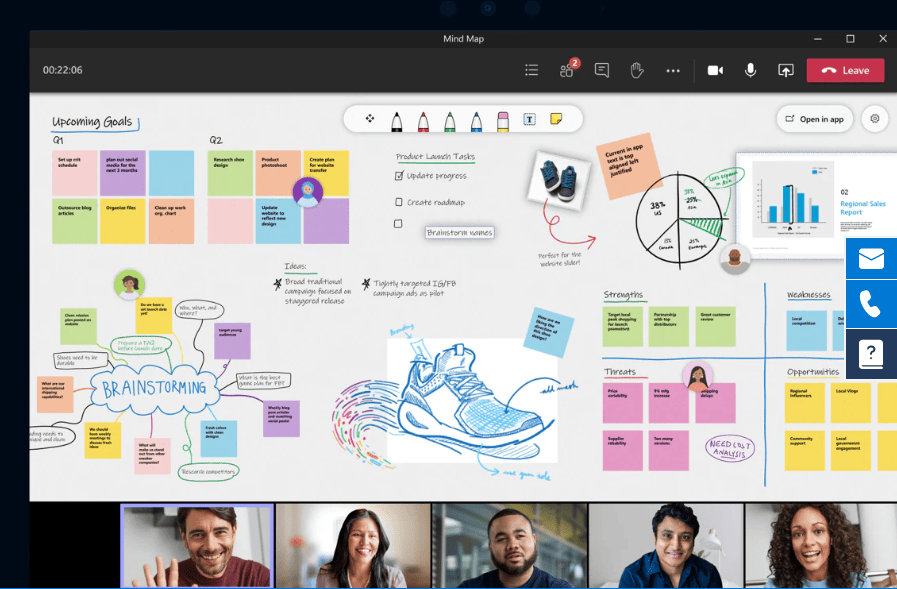
Whiteboard has been around for a while but Microsoft have added many new features to make it more flexible and user-friendly. Even Zoom has a whiteboard now – it’s obviously a valuable tool for hybrid collaboration.  
 

MICROSOFT TEAMS 

  • Time zones – You can now see what time it is where your colleagues are. Hover on a person’s profile picture and see the time under ”Contact”. 
  • Pin a message in a Teams chat – Pin a specific message to the top of a chat. Currently, only a single message can be pinned at a time and any chat members can freely pin or unpin a message in the chat.  
  • Compact mode – Customise your chat density in Settings > General. It’s set to “Comfy mode” by default but you may prefer to see more on one screen, especially on mobile. 
  • Teams Connect – With shared channels, multiple organisations can work together in a shared space. Have conversations, schedule a meeting, share and co-author files and collaborate on apps without needing to switch tenants. (Currently in Preview mode) 
  • New & Improved Teams Search – We asked, Microsoft listened. Teams Search has a re-designed user interface with four tabs: All | Messages | People | Files.  Search uses AI to return relevant results – go on, give it a try! 

3) Microsoft Loop 

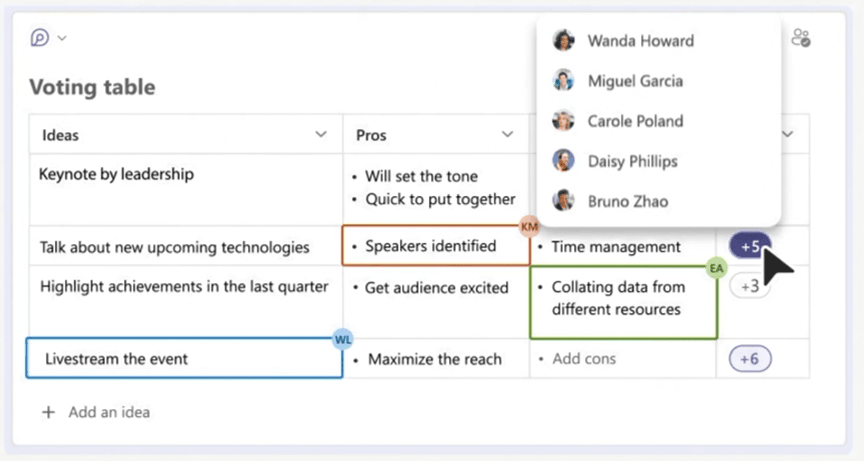
Microsoft Loop is an app that provides a powerful canvas for collaboration. It allows you to add content to a chat for your team to add ideas and feedback right inside the message. Everyone can edit and see changes instantly. Loop can be used in a Teams chat and will be able to be used in email, meetings, documents and Loop pages. 
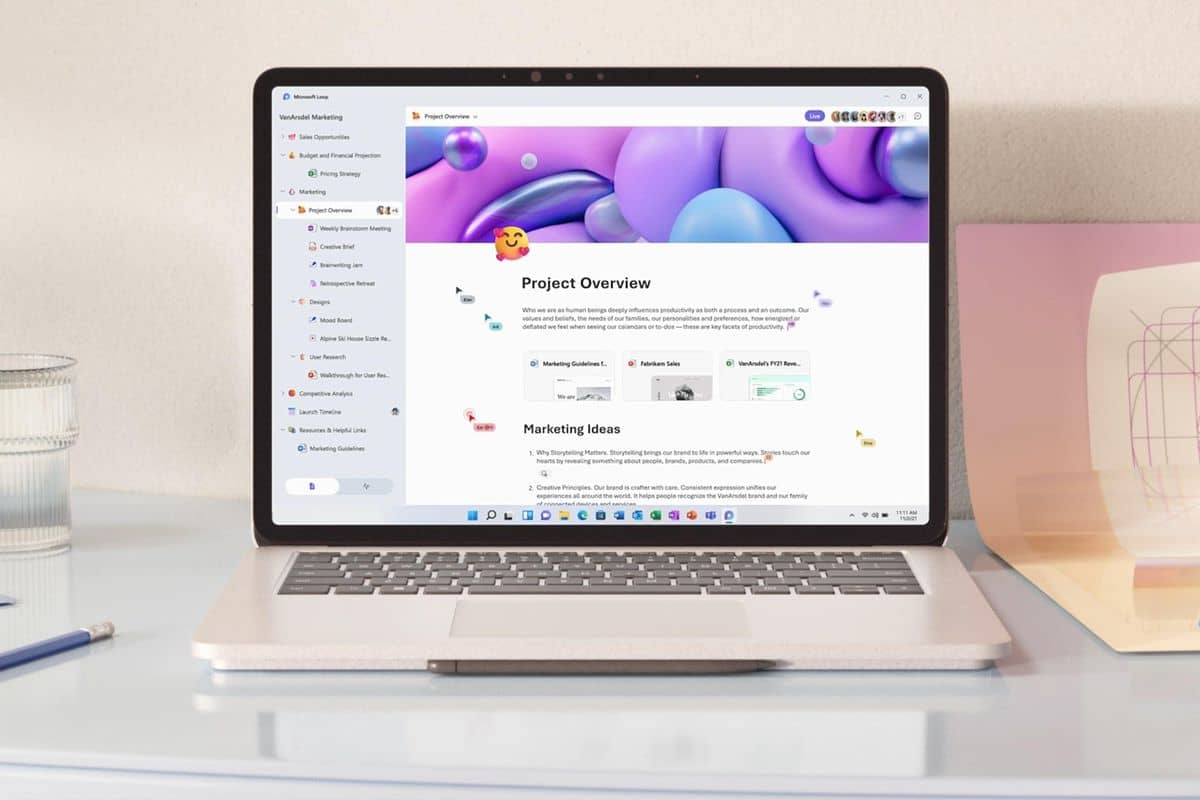
Microsoft Loop will consist of three elements: Loop components, Loop pages and Loop workspaces.  

LOOP COMPONENTS 

  1. Bulleted list 
  2. Numbered list 
  3. Checklist 
  4. Paragraph 
  5. Table  
  6. Task list 

LOOP PAGES (Not yet released) 

Loop pages are canvases where you can organise your components and pull in other elements like files, links or data 


LOOP WORKSPACES (not yet released)

Shared spaces that allow you and your team to see and group everything important to your project. Multiple people can work at the same time from different apps.  

Loop components are automatically saved to your OneDrive – Name them well!

WHAT IS LOOP FOR? 

  • Brainstorming: Ask others to share their ideas using a bulleted or numbered list component. 
  • Co-authoring: Need to draft a social post or tricky client email? Everyone can contribute. 
  • Compiling data: Send out a table component with clearly labelled columns and rows to your team. In each cell, describe the data you need and @mention the person you believe can provide it.  
  • Organising events: You can also use a table for a simple sign-up sheet. 
  • Managing projects: Use the task list component to assign work with due dates. @mention people so they’re notified.   Each person can mark their task as done and it gets crossed off the list, right before your eyes! Quite gratifying. 
  • Focusing a discussion: Set up a “mini breakout room” using a Loop component to park a single topic or decision while the main chat thread covers wider ground. 

Microsoft Loop is in Microsoft Teams and the Browser now and will be coming to other Microsoft Applications later.  (Date TBD) 

4) Other Goodies 

SHAREPOINT 

  • Add a Taxonomy column from modern SharePoint library views. This is one of those features where you really see how Lists platform as the backbone to SharePoint document libraries. You will see a new managed metadata option as a column type within the Add column menu in SharePoint lists and now libraries. 
  • SharePoint Syntex: Content assemblyThe content lifecycle doesn’t end when you classify documents. Frequently, that first piece of content kickstarts the creation of a whole slew of new documents – often built from content that’s used in the original document. With Content Assembly, you can build that new contract, invoice, letter, or other document from existing data sources, or, by leveraging AI, you can turn your existing document into a template to be used for your business-specific needs. 
  • Create from the SharePoint app bar – Added to the Microsoft 365 roadmap early 2021, this new feature expands on current SharePoint app bar capability. Accessible on the left-hand side anywhere in SharePoint, users will have the ability to create sites, files, and lists as an action. Bringing together intranet resources and personalised content, with the new update, you can jump right into the content creation process and stay in the flow of work no matter where you are in SharePoint. (Targeted release mid-April 2022) 

VIVA TOPICS 

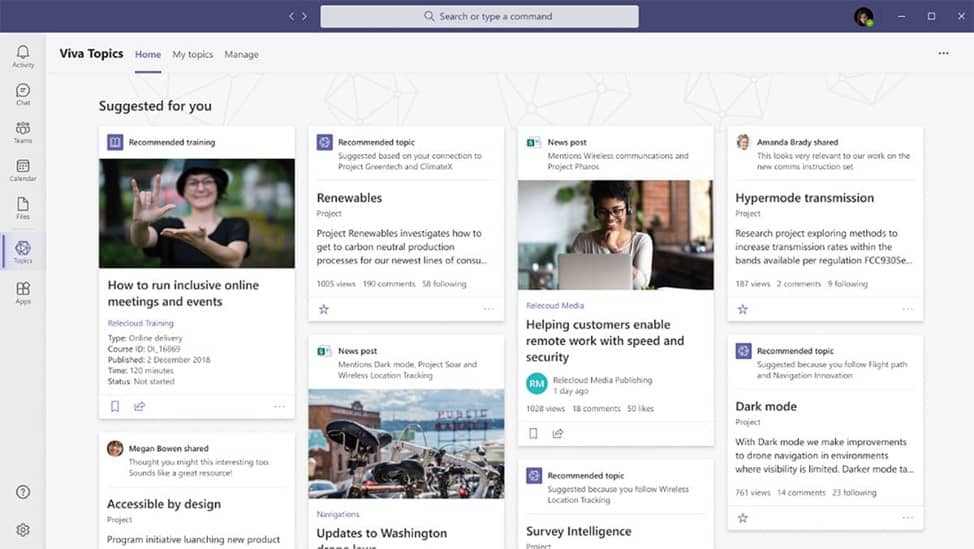
  • Viva Topics is your Organisational Dictionary! 
  • Automatically builds topic pages, topic cards and topic centres  
  • Topic cards summarise important info. They can appear in Teams or on SharePoint pages. Human experts then curate and refine – eg pinning a document to a topic page, adding additional topics and relationships. 
  • Experts associated with a topic are identified through their activity eg creating, editing and commenting on content. 
  • Then people can ask them questions and Viva Topics saves the responses 
  • Available now – $5.50 AUD / user / month 
This is but a selection of the many ongoing improvements within the Microsoft 365 suite – it’s almost impossible to keep on top of them. Do you need a Microsoft expert on your team? WebVine can provide Microsoft 365 consulting, optimisation and support, give us a call today! 

Creating a private channel

Any leader who has been paying attention can see the potential for business process automation (BPA) to increase productivity, make processes more efficient and open new growth opportunities.

As much as BPA can be beneficial for modern businesses, it isn’t as simple as finding new automation tools and throwing them at processes and problems. It takes time and consideration to properly deploy a successful automation solution.

With so many business leaders focusing on business process automation, we hear about (and create!) success stories daily. Inevitably, there are also many examples of organisations succumbing to some of the common pitfalls.

It can be expensive to learn these lessons the hard way. Look out for these traps when undertaking your next BPA project.

1. Narrow solutions result in technical debt

It can be tempting to jump at an automation solution that seems perfect for a specific process. The problem with this approach is that it will result in a siloed technical landscape. You could end up with a range of competing workflows that all work well on their own, but lack the ability to work together or offer solutions outside their immediate scope.

Instead of focusing on solutions that can work well for narrow applications, it’s best to find technical assets that apply across multiple workflows. It might take a little more time to plan and deploy, but it will help the organisation create a more cohesive technical ecosystem.

2. Overengineering Processes

In some cases, project leaders can go a little too far with their process automation initiatives. They might work so hard to engineer and refine solutions that they almost end up creating a black box. People give the system inputs and receive useful outputs, but no one really knows how it works.

This level of automation might seem ideal, but it can cause problems. There will always be situations that don’t follow the expected path: people make mistakes, systems fail. When the solution operates like a black box, you have nowhere to go when the unexpected happens. That is why these systems need to offer some type of log or auditing procedure.

3. Getting leadership on board

Many process automation projects fail before they even start. Someone sees the potential for the business to benefit from automation, but they can’t get decision-makers to approve the project. It might be that the solution doesn’t grab their attention or that they don’t see or understand the benefits.

This is why it can pay to think about the automation solution in a way that is more comprehensive. Instead of just looking at it as a problem and solution, consider all the ways the BPA initiative could have an impact on the business. Maybe it will enhance the working experience of people in other departments. Maybe it could be used to improve a broader array of processes. The more complete your picture is, the more you can increase the chance of gaining approval for the project.

4. Failures in Change Management

This problem is more common than many realise. Leaders focus on the technical implementation of the solution itself and fail to lay the groundwork for implementation.

The first step of successful change management is to involve the people who interact with these systems in the planning stages of process automation. Find out what they want and what they would recommend. Employees will need to be taught how to use these systems, and it might take some encouragement from key team members to get everyone to buy-in. You don’t just have to deliver it, you have to sell it.

5. Regular Assessments of New Tools

BPA initiatives are often imperfect on their initial deployment. Taking the time to reassess will give you the opportunity to validate the solution. It might be that it is running to near perfection and that everyone is happy. However, you might identify several opportunities for improvement.

Plan to reassess the solutions every six months or once a year.

Business process automation can offer a path to rapid increases in productivity and growth. With that said, BPA projects require planning and deliberation. If you act too fast and without proper thought, you can create new problems that – rather than solve problems – end up making things worse. WebVine have extensive experience with process automation, particularly using the Power Platform. Contact us today!

Creating a private channel

Did you know that, according to a recent study on the opportunity for automation in Australia, McKinsey estimates that 25 - 46% of current work activities could be automated by 2030, helping to drive a resurgence in productivity, employee income and economic growth[1]?

That’s a staggering a figure, particularly in light of current research which indicates that while many organisations already have the tools they need to get started, only 36% have automated their workflows[2].

Chances are, your organisation already has the technology needed to make huge leaps forward. So what business processes in your organisation could potentially benefit from automation?

Start with the processes relevant to your organisation

Every organisation has systems and processes in place (hopefully) designed to meet the unique requirements of the business. While there are processes that are likely to be universally relevant such as onboarding new staff or submitting expense forms, there will be processes that are more specific to an industry or type of business. For instance, an insurance company is unlikely to have a need to set up a workflow for off-site workers to check into a worksite the same way a construction company might.

What criteria should you look for in a business process when considering automation?

Processes that meet the below criteria are generally the most straightforward and beneficial to automate:

  • High volume and/or frequency – processes that are carried out regularly and at scale.
  • Time-sensitive – don’t miss an important deadline. Automation ensures that processes can be developed around a time frame.
  • Completed by multiple people – with many stakeholders touching a single process, errors and bottlenecks occur. Automation gives each stakeholder a defined role and timeline with transparency for all.
  • Compliance requirements – some processes are too important to leave in the dark ages. Automation is perfect when attestation, auditing and control are required.
  • Consistency – processes that follow a predictable sequence are much easier to automate. Flows that must account for a variety of potential outcomes are almost impossible to build well.

Business processes that can be automated

REQUESTS & APPROVALS

Take the pressure off approving managers by implementing a workflow that ensures that staff are easily able to submit requests and that automatic reminders are given. This will likely lead to smoother and more time efficient outcomes. Types of requests and approvals that can be automated include:

  • Leave
  • Training
  • Equipment
  • Expenses

TRAINING & VERIFICATION

When it comes to important policies and induction modules, ensure that no one slips through the cracks and that all responses are recorded and stored. Automated policy attestation will ensure that risk is managed, and that compliance is met. Types of training and policies that can be automated include:

  • Onboarding
  • Privacy and Security training
  • Site safety checklists
  • OH&S training

DATA COLLATION & REPORTING

Rather than rely on employees to manually collate and calculate data, use an automated workflow to do this. Ensure report deadlines are met and results are front and centre in your organisation. Types of data collation and reporting that can be automated include:

  • Sales results and forecasts
  • Stock inventory
  • Employee sentiment
  • Safety incidents

DOCUMENT MANAGEMENT

A robust document management system is the cornerstone of any successful digital workplace. Use automation to keep your system tidy and to reduce the likelihood of human error. Older documents can be automatically archived after a certain period without relying on an employee to action. Elements of document management that can be automated include:

  • Data entry
  • Digital document filing
  • Document lifecycle management

Making business process automation a reality

Now that you have an idea of what there is in your organisation that can be automated, it’s time to spring into action. Use our guide on Transforming Business Processes for the Modern Workplace to learn more about the steps you need to take to automate a process from start to finish. Or just get in touch with us directly.

[1] Australia’s automation opportunity: Reigniting productivity and inclusive income growth – McKinsey

[2] Global Intelligent Automation Survey – Deloitte

Each year, the Microsoft Ignite conference delivers a blend of innovation, inspiration and expert how-to’s. It’s the chance to peek behind the curtain to see what the wizards of Microsoft have been working on and this year did not disappoint.
One overall theme was bringing people, information and tasks into “the flow of work”. Wherever possible, Microsoft are removing silos and reducing context switching by incorporating elements from different M365 apps into workflows, particularly leveraging Teams, which continues to be the centre of everything for productivity and hybrid work.
Following are our highlights from Microsoft Ignite November 2 – 4, 2021.

1. TEAMS

Teams Connect

Managing guest access has - until now - been a pain, generally requiring the guests to log out from their environment and into another. This Teams enhancement allows you to invite people to chat on Teams with an email address or phone number and still follow your security & compliance policies.

The shared channel is added to the user's home tenant, allowing them to access both external and internal collaboration resources within Teams.

Availability: end of the year.

Virtual Events
Teams events have seen gradual improvements over the last 6 months and further enhancements were announced at Ignite, including:
• Q&A capabilities
• Webinar and meeting co-organiser feature so you can assign up to 10 organisers.
• Virtual green rooms that allow organisers and presenters to talk, monitor chats, manage attendee settings and share content
before an event begins and for enhanced controls that allow hosts to manage what attendees see.
• Integration with events platform Cvent

Power Platform integrations
More capabilities from Power Platform have been integrated with Teams:
• Browse Teams-specific automation in the Teams App Store
• Use Power Automate templates without advanced configuration
• Use the Power BI app to access new scorecard visuals and Power BI Goals
• Share Power Virtual Agents in Teams inappropriate security groups
• New third party application integrations were also announced including Atlassian Jira Cloud and SAP Sales & Service Core

Need some Teams Training to get the best out of this ever-changing platform? Get in touch.

2. MESH AND THE METAVERSE

The “metaverse” is a space inhabited by digital versions of ourselves where we can interact with each other and elements within the digital environment, removing barriers of the physical world.
Microsoft has brought this into the enterprise with Mesh, announced at a previous Ignite, allowing people to take the form of avatars and navigate virtual work environments.
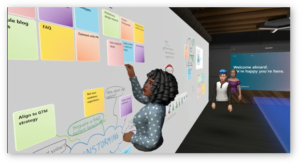
Mesh combines “shared holographic experiences” with existing communication tools like virtual meetings, chats and shared documents, and now this can be experienced through Teams. The avatars are supposed to reduce webcam fatigue but still share meaning through accurate gestures and expressions.


The software can be used with a smartphone, laptop or virtual reality device. Mesh for Teams can include an interactive whiteboard, colour-coded tasks or pictures of customers. Prototypes of products could even be laid out on a virtual table. Early adopters Accenture built an immersive digital office environment called “the Nth floor” and have used it to onboard over 100,000 new employees using Occulus VR headsets. It helps new starters experience the culture and grow professional networks.

“The Nth floor brings human connection to our digital world”
Elyn Shook, Accenture

Preview availability H1 2022.

3. MICROSOFT LOOP
Another big announcement this Ignite – a brand new service called Microsoft Loop, built on the Fluid Framework open-source platform. Loop brings together multiple Microsoft 365 apps to create collaborative workspaces, presenting content and ideas from different sources together in one place.

Loop features 3 elements:
1. Loop components: items like notes, lists, tables or Dynamics 365 customer records. Components can be used across chats, meetings, emails and Word docs. Because Loop components stay in sync across M365 apps, you’re always working with the latest information.
2. Loop pages: A canvas for organising components and adding in links, files, or data.
3. Loop workspaces: shared spaces to view and group components. Workspaces make it easy to catch up on progress and react to ideas.
Currently, only Loop components are available, with no timings given for pages or workspaces yet. Microsoft will reveal more details on Loop at Microsoft Build 2022.
4. VIVA

Viva Learning - Now Available!
Viva Learning connects content from your organisation, learning management systems, third-party providers and Microsoft.

New announcements:
Stay up to date on required learning by viewing assignments from integrated Learning Management Systems
Search across learning sources connected to Viva and filter by interests, provider or duration
Assign Learning recommendations and track completions
• Add a curated set of learning resources as a tab in your Teams channels to bring learning directly into the flow of teamwork.

Viva Insights
Viva Insights uses your usage data to generate insights and recommendations. This Ignite, they have announced new features around employee wellbeing, identifying potential issues with recommendations:
Personal insights into time spent in meetings/email
Reminders to make time for learning & building your network
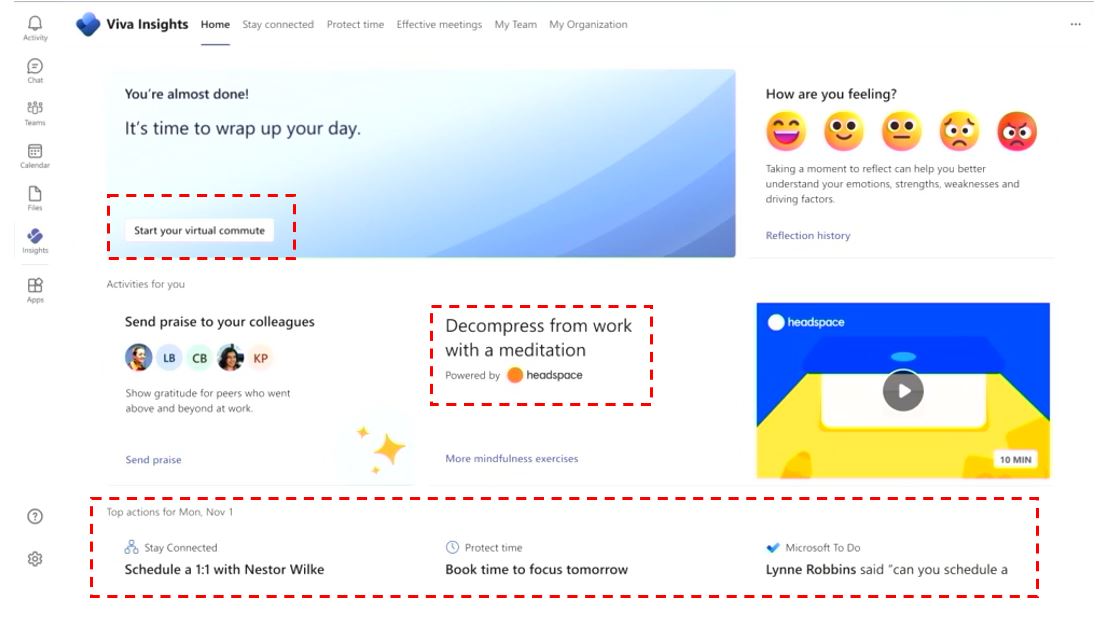
Guided meditation from Headspace + “Virtual commute” for a mindful transition from work to home life
New manager tools to track outstanding tasks, book 1:1 time with team members, recognise accomplishments, ID burnout risks and explore personal habits that impact team culture.
Meeting effectiveness - insights for meeting organisers to improve meeting habits eg timeliness, participant contributions.

Viva Insights example

These insights will be available soon for any team size from the My team tab in the Viva Insights app for Microsoft Teams.

Viva Topics
Viva Topics applies AI to organise content and expertise across systems and teams into related topics, like projects, products, processes and customers. This content appears as topic pages and topic cards that deliver knowledge in the flow of work across Outlook, SharePoint and Office.
New updates:
• More integration into Outlook, Yammer, Bing + people profile cards. (Available end 2021.)
• Add Topics to chats and link to topic cards from highlighted topics in Teams. (Available March 2022)
• Viva Topics inside Outlook: indicator showing all topics referenced in an email. Hashtags to add topic highlights or Viva Topics can suggest topics based on email content. (Preview year end.)

Viva Connections
Connections is designed to be a communications hub aggregating content such as personalised news, communications, tasks, people & resources and events – all within Teams.

• Connections mobile app – now available
• New dashboard web part aggregates content from across M365: News – SharePoint, Chat – Yammer, Video – Stream (releasing this month)
• Can be tailored for frontline workers
• Boost functionality prioritises important news with likes & comments for engagement
• Branding now available with logo & colours
• Integrations with workday, UKG, ServiceNow and more

The fifth element – Ally.io
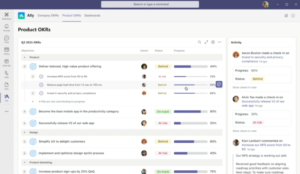
Ally.io, a leading objectives and key results (OKR) company, will join Microsoft Viva (H2 2022). This component will communicate company results and track progress on outcomes at a corporate and individual level, bringing strategic planning to a granular level and helping with managing for outcomes.

Ally.io connects everyday work to the company’s strategic objectives and aims to bring deeper connection to work, purpose and results in the hybrid world.

5. AZURE OPEN AI

Power to the people - OpenAI’s machine learning models will now be available on the Azure platform. OpenAI’s language model can produce large amounts of quality copy with only a few prompts, using GPT-3, the largest neural network ever produced. GPT-3 has been used to create articles, poetry, stories and news reports.
Access will be invitation-only and applicants must demonstrate responsible principles and strategies for using the technology. No potential Skynet terminators here.

6. SECURITY

“Cyber Security is the biggest threat to Digital Transformation”
Satya Nadella

Cyber security issues cost the economy $6 trillion annually, with small businesses often the target. 92% of organisations now have a multi-cloud strategy adding complexity to security measures and people mixing work PCs with BYOD adds another layer
Comprehensive tools across identity, security, compliance, privacy, and management are needed. New Security announcements at Ignite included:
• Azure Security Centre and Azure Defender are now Microsoft Defender for Cloud – centralising security across multi-cloud environments
• Co-authoring on Word, Excel, & PowerPoint documents encrypted with sensitivity labels
• Communication Compliance enhancements: Day Zero Insights - See trends such as harassment, threats or sharing of sensitive information throughout all communication channels (e.g. Teams, emails) in near-real time
• More advanced detections for anomalous tokens and unfamiliar sign-in properties for session cookies

7. CONTEXT IQ

The Microsoft Graph connects to various Microsoft 365 services to provide access to data and functionality from Exchange, OneDrive, Teams and other productivity platforms.
Context IQ is a set of capabilities for Dynamics 365 and Microsoft 365 that surface the right information, people and insights in the moment, in context.
a. Context IQ Editor offers predictive assistance in Word, Chrome and Outlook eg suggesting attachments or recommending meeting times
b. Start Teams chats within D365 with suggested SMEs to resolve customer issues faster
c. Conversation intelligence transcribes sales calls and provides insights

Will this be like Clippy, only better? For now, it’s only available in preview on the web – not desktop apps.

8. BEST OF THE REST

There were WAY too many to list them all, but here are some other announcements of note:
Vertical Clouds - Microsoft is addressing industry needs with clouds for specific verticals such as finance, health, manufacturing and not for profits, supporting requirements such as legal & security certifications. A new cloud in the preview is Microsoft Cloud for Sustainability to help measure & manage carbon emissions, set sustainability goals and actions.
Microsoft Customer Experience Platform - A series of integrations between Dynamics 365 Marketing and its Customer Insights customer data platform, modules that can be added to Microsoft Dynamics 365 CRM.
Physical Spaces – Intelligent speakers and cameras make hybrid meetings smoother and more effective, isolating in-office attendees into individual views and using voice recognition + improved translation in PowerPoint live. “Front row” brings life-size videos of remote participants to the table, and Dynamic view automatically optimizes video display between in-office and remote participants.
Rich content experiences in OneDrive - Microsoft announced new OneDrive features to streamline workflows, providing better access to top libraries and improving resource-sharing visibility. With the Quick Access feature, you can pin and reorder your shared libraries. Teams meetings video - with transcriptions - are now saved to OneDrive so you can quickly find the section you want.

That’s it for one more year! Click here if you would like to see our 30-minute Ignite Announcements webinar.

Most of us working in Microsoft 365 based organisations are probably using Teams for day to day meetings, chats, file sharing and collaboration. Yammer can be seen as the poor and out of date cousin to Teams, superseded by this multi-faceted superstar.

But Yammer can do things Teams can’t which is why a WebVine client recently requested some guidance around Yammer as a systematically implemented Enterprise Social Platform. They were looking to support a digital culture of communication and collaboration, building engagement within hybrid and remote work.   

Why Yammer?  

While Teams is better for day to day exchanges and rapid responses, Yammer has several advantages over Teams for broader communications. This aspect of corporate communication is becoming more important to build engagement and culture within a hybrid work model. 

  • 1. Inclusive Communications

     With open communities that people can join without having to work with each other on a daily basis, Yammer is an awesome tool for company-wide communications. People can reach out, interact with senior leaders, share thoughts and ask questions across the whole organisation. By design, Teams only supports smaller group communications with people you already know and communicate with. 

  • 2. Microsoft Integration

    Not only does Yammer come free with your Microsoft 365 licence, Yammer feeds can easily be embedded into the intranet. Authors can share engaging intranet content from anywhere within your digital workplace using Yammer share buttons, driving traffic to the intranet and creating more opportunities to see content. 

  • 3. User-led Discovery   

    Sharing content in Teams is easy, but recipients are just that – specified people that have been chosen to receive certain information. Yammer enables exploration and discovery, with public groups accessible by anyone with an interest. 

Getting started with Yammer 

Like any enterprise social undertaking, a Yammer rollout requires careful planning. A Yammer ecosystem that is simply created and handed over will either end up in chaos or – more likely – unused and gathering dust.  

Here are 5 steps to a successful Yammer launch. 

1. Define your vision 

Be clear on the purpose of Yammer in your organisation.  This will guide decisions made on deployment, permissions, adoption and management. Are you looking for:  

  • a) Corporate communications and top-down broadcasts 
  • b) A channel for status and photos 
  • c) Promoting interest-based social connections  
  • d) Crowd sourcing ideas and feedback 
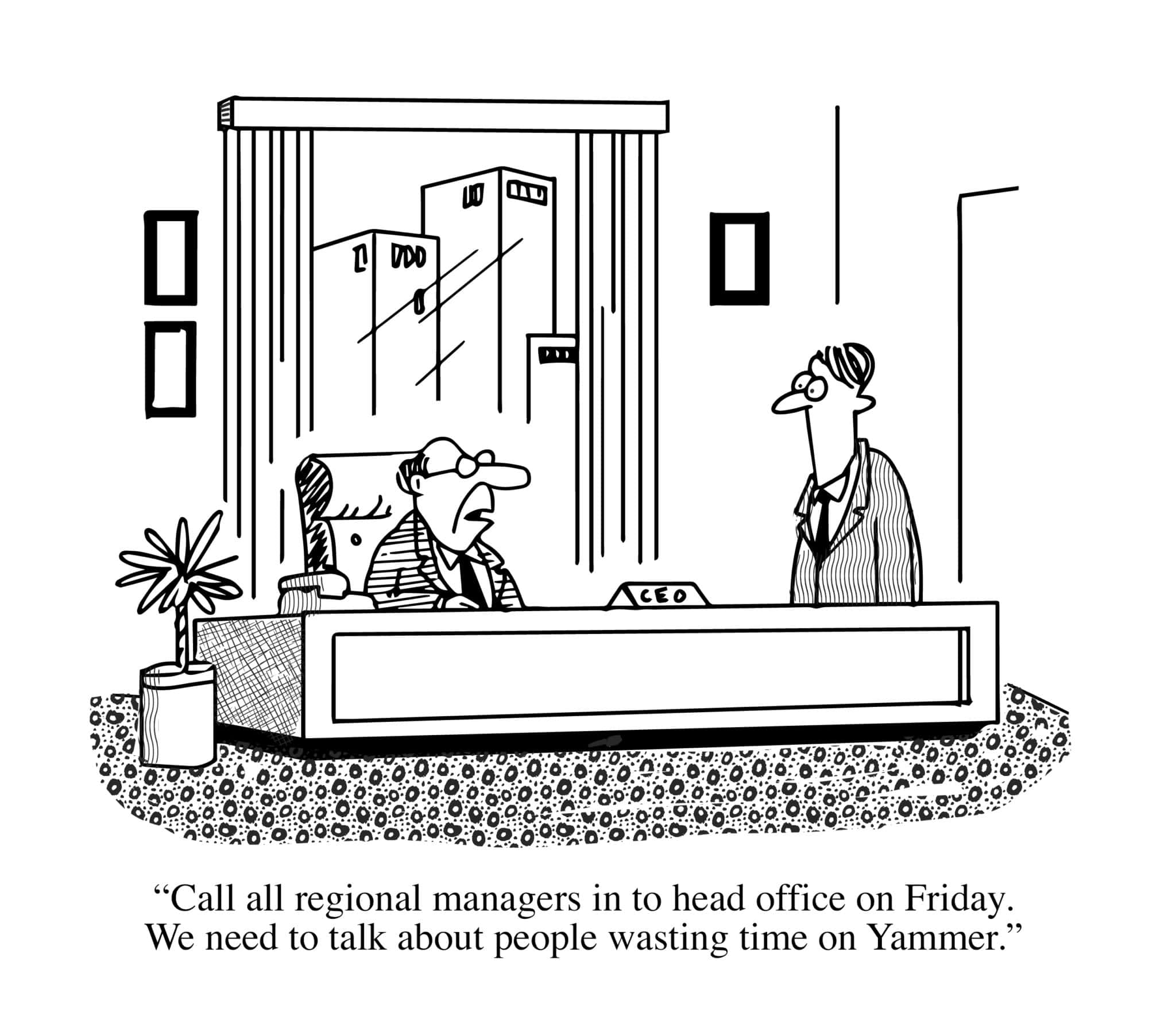
Yammer cartoon

2. Configure your Yammer network 

To ensure a consistent experience for all users, your admin or the vendor setting up Yammer should: 

  • 1) Agree and set the network name (friendly name for the Yammer header.) 
  • 2) Customise how it looks 
  • 3) Determine rules for file upload 
  • 4) Set limits on third-party app use  

When you create users in Office 365, they can log on to Yammer with their Office 365 credentials. When a user is deleted from Office 365, he or she is automatically deactivated or suspended in Yammer. The user's profile properties (such as name and department) from Azure Active Directory are automatically populated in the user's Yammer profile.  

Avoid Yammer Community madness:  

By default, Yammer allows everyone in the company to create Communities and there’s no way for a Yammer admin to restrict this. You’ll need to create an M365 security group whose members are allowed to create M365 groups, then set Yammer to follow same rules as M365. 

3. Governance and Security   

Governance is key to managing the Yammer platform from both business and IT perspectives.  

IT governance will focus on platform configurations, administration & support mechanisms, integrations and upgrades.  

Business governance will focus on communication goals and change management. It’s essential to find a balance between free exchange and chaos. Introduce too many rules and you will squeeze the life out of any social network, particularly in the first few months. An etiquette guide is a good start. You can have your usage policy appear as a link in the side bar in each user's Yammer home screen or to display it as a pop-up that users must accept before entering the network. Microsoft has a sample one here 

You can monitor sensitive content by specifying keywords such as banned words or employees' personal information. All messages in internal and external networks, including messages to and from external participants can be monitored – you just need to set a person who is responsible for monitoring, editing and/or deleting flagged posts. 

4. Launching Yammer  

Get your plan in place well in advance of launch.  

  • •  Build momentum gradually. Pilot with a group of users. Use this time to iron out any technical issues such as access and permissions. 
  • •  Make sure there is a clear and effective channel for people with technical questions. 
  • •  Try to make Yammer part of everyday work. It must be easy to find and access. Incorporate a feed on your intranet home page. 
  • •  Admins sometimes get excited and create complicated structures with lots of different topics. Start with one Community and let it build - one big party room with lots of activity. 
  • •  Ensure senior level executives actively contribute.  
  • •  Create a standard daily post: tip of the day, shout-outs for excellent work, best new intranet photo, industry updates etc.  
  • •  Have at least 3 months planned content ready BEFORE launch. 

 5. Change management and Yammer adoption 

Change management is crucial.  

Social engagement is like trying to launch an aeroplane – you have a short runway and if you haven’t taken off after a few months, it’s going to be a struggle to get off the ground. Do it right the first time. 

  • •  Having followed the first step and identified your reasons for introducing Yammer, you must be able to explain the many benefits to resisters. Senior leaders must be across these reasons and talk about them often, as well as sharing updates on Yammer instead of email. 
  • •  Appoint “Yambassadors” to talk up the platform, post juicy topics and help anyone with technical difficulties.  
  • •  Show that Yammer is better than email. Respond quickly. Answer every question asked on Yammer and reply/like every comment.  
  • •  As noted above, don’t try and control the content too much. Some difficult topics may arise but it’s better to address them openly and transparently.

Established properly and governed well, your Yammer social network can form a central pillar of social connection, cultural engagement and even innovation.  

If you are looking for a cost-effective, inclusive and – yes – fun way to bring your people together, or have tried to launch a new ESN and it has been a disaster, Contact Us. 

By 2024, Forrester forecasts a global developer deficit of 500,000 resources[1].  IT departments are scrambling to meet increasing demands from business users and often even simple solutions are beyond their capacity to design, test and deploy.

Enter Citizen Developers: non-technical people who are familiar enough with business processes and problems to build applications to solve them without burdening IT. They use no-code/low-code platforms that provide a secure environment for business users to develop solutions without breaking anything major.

This all sounds great, but some common issues arise when non-technical users design and build apps, many of which can be avoided with the right planning and processes.

Here are our top 5 landmines and how to avoid them:

1. Straight to solution mode

It’s excellent that you have a proactive team member who wants to solve all the problems, but if they lack experience in solution development, leaping straight in to building the solution is a mistake. Get help first. Explain your problem and your solution ideas and get an experienced developer to help you structure an efficient solution. By all means, learn to build it yourself but having a clear architecture up front means your app will be more effective, more user-friendly and easier to maintain.

2. Ignoring basic development principles

Even with a no-code framework like Power Automate, a citizen developer still needs some knowledge of software design principles. For example the DRY principle (don’t repeat yourself) which means reducing repetitions and making a modular solution to avoid redundancy. Not understanding coding basics can result in a complex and unsustainable piece of software. It will be difficult to manage and if the logic changes, the code needs to change in multiple places. Organisations with keen citizen developers should invest in some basic training to cover off this knowledge in advance.

3. Ineffective Governance

Proliferation of fast-moving, low/no code development increases risks around maintaining effective security, integration, compliance and privacy. It’s not easy to prevent people from breaking things without stifling creativity. Selecting a platform that reduces compliance risk and enables audits will help, as will these rules:

  • Update existing governance documentation to make it easy for non-technical people to understand and follow.
  • Maintain IT oversight of low-code projects and ensure their resource requirements are justified by business benefit
  • All data stored in one place. Citizen developers shall not create databases.
  • Restrict access to sensitive data.

4. Lack of change management

Just because a solution has been developed outside of the usual project framework doesn’t mean all of the regular implementation processes can be ignored. A new app or interface changes the way people work – and not everyone impacted will be as tech-savvy as the citizen developer who created the solution. A mandatory project checklist can ensure that team input is sought when designing the solution and training and communication is completed as part of the deployment process.

5. No man is an island

Citizen development can be lonely! You aren’t part of IT and your colleagues are likely unable to commiserate with code challenges or understand bug fix triumphs… not to mention help with troubleshooting. Create a forum for your citizen developers to encourage connection, assistance and recognition plus a channel within IT or externally to a support troubleshooting.

41% of employees outside of IT are now involved in either building or customizing technology solutions for their organisation.

Gartner

The Covid-19 pandemic has only accelerated the trend to low-code platforms and your next significant business application could be thanks to a citizen developer. With proper basics training and strong governance guardrails, low/no-code development holds huge potential for forward thinking organisations.


[1] (How To Harness Citizen Developers To Expand Your AD&D Capacity, Forrester Research, Inc., April 19, 2017)

Now Ignite 2021 is over we can take stock of the many announcements and what they mean for our business and clients. Here are our top picks, those relevant to the Digital Workplace, and what we think they will mean for organisations and individual users. Teams seemed to be the winner again this year, which is to be expected given the continuing trend to hybrid work.

“These cloud advances are what will enable every organisation in every sector to create [a] broad economic surplus in every community, in every country. This is what the Microsoft cloud delivers.”

Satya Nadella

1. Microsoft Mesh

Microsoft Mesh example

First, the F U T U R E. Microsoft Mesh is a collaborative platform that allows shared virtual experiences. Mesh allows people to appear in the same space, talk and interact with virtual objects like product models. Mesh will initially show you as an avatar, but “holoportation” will soon render more realistic 3D imagesOf course Microsoft would prefer you to use a Hololens, but a variety of devices are supported.

Is this relevant to most people? No. Is it awesome? Yes. 

2. Teams Integrations

There are lots of exciting new things being integrated into everyone’s favourite collaboration platform, with the obvious advantages of reduced context switching and productivity 

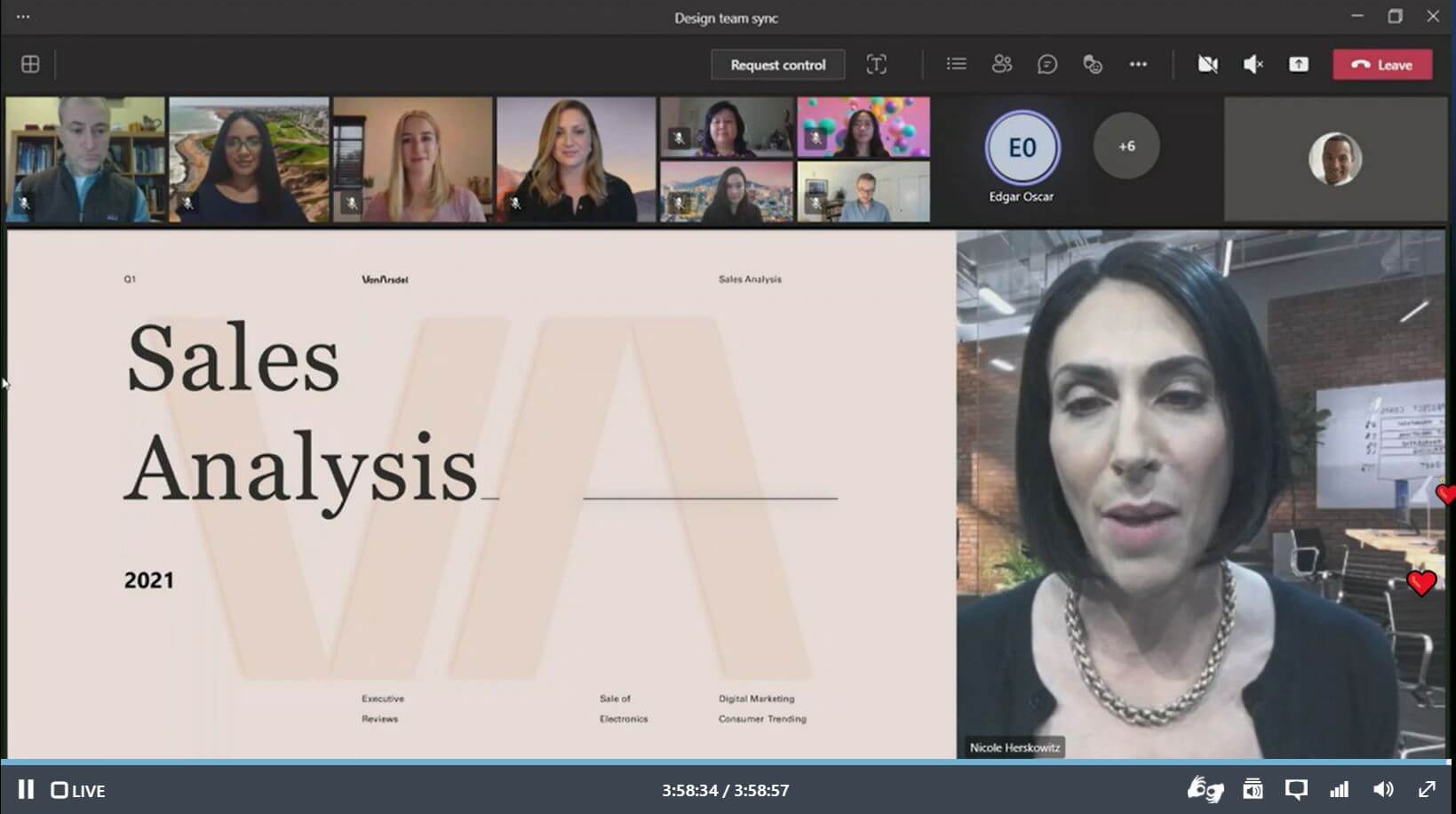
1. The new "PowerPoint Live" Teams integration allows the presenter to appear next to or IN their content to better express emotion and improve connection. Additionally, users can now choose to have the participant gallery at the top of the window.  

Teams PowerPoint Live example
Power BI in Microsoft Teams

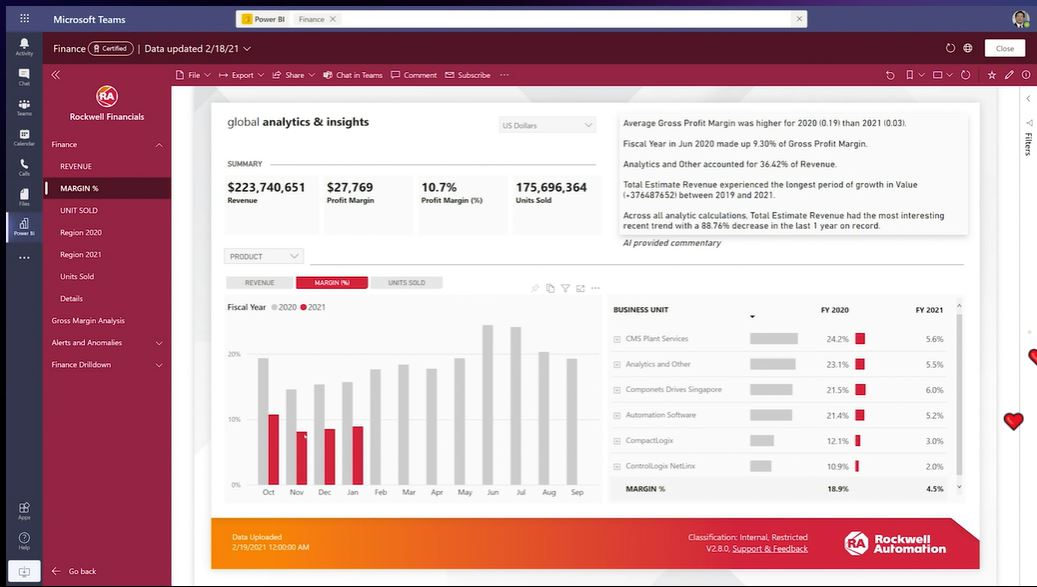
2. A new PowerBI integration provides the capability to distribute PBI data directly in Teams. Also in the Power Platform, you will be able make a Power Automate workflow directly from a Teams message, with lots of new Power Automate templates in the Teams app store under the new Automation category. 

3. Teams and Microsoft Dynamics 365 integrations allows users to access and share D365 content from within Teams, without having to switch over to Dynamics 365. Converselywe can leverage Teams from within Dynamics 365 to place calls, start or continue chats, hold meetings and collaborate.   

3. Other Teams Announcements

1. Microsoft Teams Connect enables users to share channels both inside and outside their organisation. Each shared channel will appear within a user’s primary Teams tenant alongside existing teams and channels, providing access within their existing workflow. 

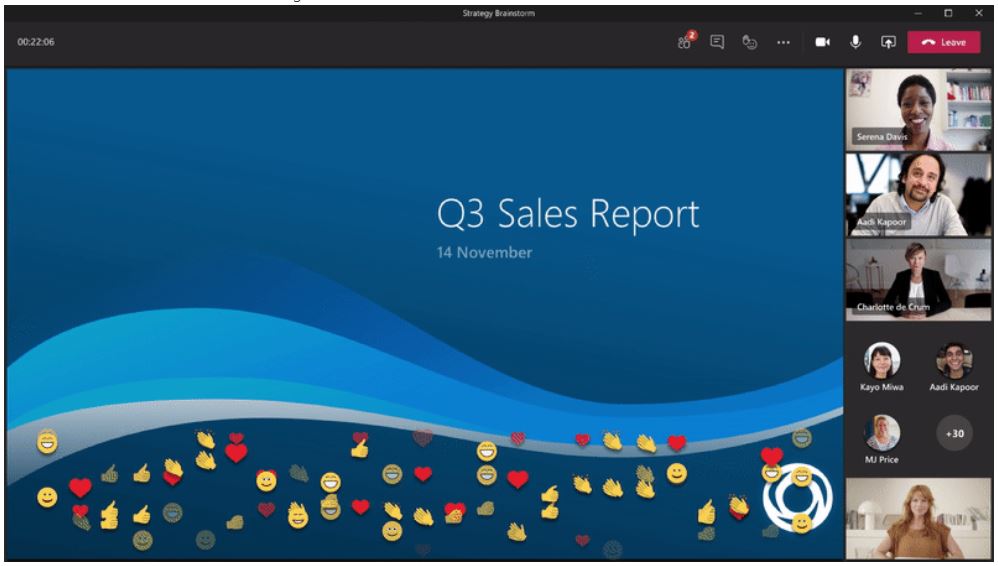
2. Live reactions in meetingsChoose from a range of active responses including hearts, smileys, claps or thumbs up - these reactions help promote inclusivity in meetings and keep things upbeat and interactive. 

Microsoft Teams live reactions example

3. Teams Live: Teams now supports interactive webinars for up to 1,000 attendees, including audiences inside and outside your organisation. A new custom registration page with live reactions means future WebVine webinars will likely be in Teams – give us a heart emoji! Users can organise, promote and report on Teams events from inside Dynamics 365 Marketing.

4. End-to-end encryption: Teams will enable end-to-end encryption to protect sensitive one to one calls. This will be available for commercial customers by June.

4. Power Fx

Microsoft continues to embrace open source. They have now announced Power Fx, a new open source, low-code language based on Microsoft Excel formulas. Power Fx will become the standard for writing logic customisation across Microsoft’s own low-code Power Platform. This may well become a helpful common language between business users and IT where it can be used to build logic and discuss solutions. This language is available now, with implementation being open sourced on GitHub later this year.

5. Microsoft Viva

While this new bundle had already been introduced, Microsoft did announce that Viva Connections will be available to all customers as part of their existing Microsoft 365 and SharePoint license. If a user has access to SharePoint, Viva Connections will be accessible.

What is Viva? It has been marketed as a single employee experience platform (delivered via Teams) but it is made up of four parts:

Microsoft Viva Example

1. Viva Topics - using AI to organise and present relevant knowledge throughout your organisation.

2. Viva Connections helping users engage with intranet content and services by delivering them through a personalised gateway in Teams.

3. Viva Learning - a central hub for learning in Microsoft Teams. Content is aggregated in one place from across your organisation, within Office 365 and LinkedIn as well as other platforms like Coursera and Skillsoft. The Viva Learning public preview will be available next month.

4. Viva Insights – provides personalised and actionable analysis with advice to improve productivity and wellbeing. With a greater focus on individual privacy, managers can only view trends at a higher level. Insights is in public preview now.

Want more? Check out the Ignite 2021 Book of News


Virtual meeting at home

Many of us have already started to return to the office after spending some time away. With that said, things have changed. We are now used to working with the tools of remote work and we can see the benefits of continuing with some of these practices.  

Teams and Zoom meetings are now a common part of work for many of us. As convenient as they are, they do require some adjustments for them to be as effective as in-person meetings. If you are not careful, these meetings can get off track or it can be difficult to get the important points across. 

Here are a few tips for making remote meetings more effective. 

Manage the Flow of Group Meetings 

A one-on-one meeting is relatively easy to manage. Even when they go off track, it isn’t difficult for two people to get back on the same page. When you have three or more people, it can be a little harder. Try the following to increase productivity in group meetings: 

  • If you are running the meeting, get familiar with the technology and test it out. This will allow you to help others if they have any issues.
  • Set an agenda for the meeting. This will keep things on track and help ensure that no important points are missed.
  • Start with introductions or a simple check-in. If people need to be introduced, make the introductions. If everyone knows each other, just go around the group for a quick check-in to make sure everyone is ready to begin the meeting.
  • Provide the option to post in a chat box. This will give people the ability to comment or question when someone else is talking.
  • Make sure everyone has a chance to speak. If you notice someone has not said anything, ask them if they have anything to add or if they have any questions.

Be Prepared 

A little preparation can go a long way toward having a better meeting. 

  • Join the meeting a few minutes early so you can test your headphones and microphone. 
  • If you plan to present material on screen for other participants, make sure it is easy to access. You might even want to practice switching to screen sharing before the meeting starts. 
  • Prepare notes that cover the key elements of your presentation.  

The Personal Touch 

It is easy for many of the personal elements of communication to get lost in virtual meetings. The following tips can make it easier to connect with others at a virtual meeting: 

  • Slow your speech down and make sure to pronounce your words clearly. 
  • Maintain eye contact with the camera. It might feel more natural to look at the screen, but you want others to feel like you are looking at them and paying attention. 
  • Pay more attention to the cues of natural conversation. It isn’t as easy to pick up on the natural cues of a conversation when you are in a virtual meeting. Try to be a little more attentive as it concerns cues that may indicate when a person expects you to speak or listen. 
  • Don’t be too rigid. Try to make it an enjoyable experience for yourself and for other people at the meeting. 

Maintain a Professional Appearance 

Whether it is a manager, other team members or a client, you want to look professional. Just because you are at home, don’t think it is any different than inviting someone into your office. 

  • Dress as if you were meeting someone in person. Wear the types of clothes you would wear to any meeting. 
  • Make sure your background is appropriate. Are there any items you would not want people from work or clients to see? You might even want to consider using a virtual background to avoid any issues. 
  • Make sure your camera is set at eye level and check your lighting before the meeting. 
  • Try not to move around too much. Excessive movement may distract from what you are saying. 
  • Some people have a tendency to get a little stiff when they are in virtual meetings. Try to relax and be natural. 

Expect the Unexpected 

Even if you are lucky enough to have our own home office, there is always the potential for something unexpected to happen. Maybe a child wanders into the room or maybe a technical issue throws things off for a minute or two. You need to be prepared for these situations. 

  • Stay calm and try to get the meeting back on track. 
  • If you have reason to believe there might be an issue, try to let people know ahead of time. 
  • Other people may have technical challenges as well. Try to be understanding. 

Online meetings are now an expected part of work and business. They might not always run perfectly, but there is a lot you can do to make sure your Teams meetings are more productive. You will also get better at handling virtual meetings as you gain experience with the technology. 


The past year has done a lot to show businesses of all sizes that they need to embrace the concept of Digital Transformation. New technologies are emerging regularly, and if your business is not keeping up with the latest innovations, there is a good chance you are falling behind the competition. 

Whether you are looking for new ways to support a better customer experience, developing a framework for remote work or assessing plans to make your processes more efficient, now is the time to consider some of the ways you can use technology to increase. 

Check out the following ideas to see some of the ways you can get more from the Digital Transformation at your organisation.  

Educational Resources 

Having the latest software tools can be one of the best ways to move your business forward with its Digital Transformation, but different users will adapt differently to the introduction of these tools. Instead of leaving users to figure out Teams, SharePoint and OneDrive on their own, you could create a series of training videos that will teach them the basics and then move on to more complex skills 

Digitise and Automate Simple Processes 

Most businesses have several processes that could be automated. This includes things like lead capture, expense submissions, holiday requests, document approvals, purchase orders and more. Digitising and automating these types of tasks can save workers a lot of time and they can help to make many of these processes more reliable. Using Microsoft Power Automate, you can create workflows that will make your business much more efficient. 

Digital Signatures 

So many otherwise efficient processes hit a snag when they suddenly have a requirement for a signature on a piece of paper. A digital process moves smoothly from step to step, then everything gets slowed down when you or the other party needs to print and sign a document. By moving to e-signatures whenever possible, you can remove this hurdle and keep the process moving smoothly and without unnecessary delays. 

Create an AI Assistant for Employees 

Even the best training can’t eliminate all possibility of employees running into issues with some of the tech solutions your business uses. Instead of having them submit a Helpdesk request, you could create an AI bot that is trained to handle the most common issues. This will provide simpler, more convenient solutions for employees, and it will also cut down on the workload of those who would normally have to assist with these issues. Something like Microsoft’s Azure Bot can be ideal for creating a bot that can provide intelligent solutions for these types of problems. 

Use AI for Analytics 

Using AI to create a chatbot assistant can be great for making the lives of employees easier, but expanding AI to analytics can help you make smarter business decisions. If you are thinking about making a major organisational change, AI can crunch the data to predict whether it is a smart move. If you are looking to learn more about your customers, AI analytics can provide insights that will help you serve them better. 

Business Intelligence Dashboards 

Business intelligence dashboards can be great for making data more accessible and easier to understand. Using a tool like Power BI from Microsoft, you can bring data from multiple sources together and have it displayed in a dashboard screen. This can be good for improving data transparency and for creating reports. Depending on your needs, you can use BI dashboards to provide a clearer overview for things like marketing, sales, customer service, production, logistics and more. 

Cloud Migration for Documents 

Storing your documents in the cloud can offer several benefits. It could save your organisation money, make the documents more accessible and it offers flexibility that you might not be able to achieve with in-house solutions. While the benefits are considerable, you do need to realize that it is a large undertaking. Starting with a pilot programme that just involves one team or department could be a good way to work out some of the bugs before migrating all of your data to the cloud. 

Add Helpdesk, HR and Payroll System to Intranet  

You can make your intranet a hub for an array of information resources your employees want to engage with. By adding things like Helpdesk systems, HR contacts and policies and payroll to the intranet, you can make these resources more accessible and more convenient. 

Switch from Desk Phones to Softphones 

Softphones offer the functions of a desk phone on a laptop or other computer. Along with that, they often support a range of other features like video calls, conference calls, SMS and file sharing. With modern workers spending less time at their desks and more time at home or on the go, softphones are the ideal communications solution for modern businesses. 

Integrate Salesforce with SharePoint 

If you are using both SharePoint and Salesforce, you should use integrations to bring these two systems together. This can be a way to reduce costs, increase efficiency and simplify document management for documents associated with Salesforce. 

These tips can be good for helping businesses of all sizes get the most of the technologies that are available to them. With that said, digital transformation is an ongoing process. Technology needs to be reviewed and you should always be on the lookout for opportunities to add value through digitisation. 

Welcome to the team! Just keep your distance.

It is extremely inconvenient when a new hire resigns soon after you have cleared the many hurdles of securing budget, advertising, interviewing and hiring them. Sadly, statistics show one-third of the new staff checking out a replacement job in less than six months, and even 25% of them resigning before the year is up.

36% of organisations lack a structured onboarding process, according to CareerBuilder. So regardless of the industry you’re in, the onboarding process is essential to help people settle in both socially and practically, as well as aligning with the company’s particular values.

With the ongoing migration to remote working, we are experiencing more obstacles to onboarding new starters. How do you make them feel welcome? How best to give practical support for setting up a safe, effective work space?

There are some generally applicable guidelines although the right answers can depend on each role.

1.  Meet the family

A scheduled Teams lunch helps everybody get acquainted. A regular social video meeting that's already a part of the work week can take the pressure off people to organise their own catch-ups. A big welcome on the intranet homepage plus a quick Skype with the Managing Director will show your new team member that they're visible and valued. WebVine does it every Tuesday and it really breaks the ice within the team.

2. Checklists

Checklists reduce errors and stress, although it may appear bureaucratic. Set one up in Planner and go through it for each new employee to make sure things aren’t missed. It can be difficult to identify omissions and problems when you aren’t in regular proximity, and the new person might be unsure when to flag issues.

3. Automatic Processes

Technical onboarding components like system access, hardware allocation and Group membership are readily accomplished with a Power Automate flow, as well as collecting required information such as tax file number and superannuation details. Digital data collection reduces error rates and gaps as well as allowing team leaders to focus on the more interpersonal and strategic aspects of onboarding.

4. Engaging Training Materials

Training must be delivered effectively via user-friendly and appealing training programs. Compliance topics such as safety and security should record completion and require attestation. Set up reminders for those who have not completed required tasks, and their Manager. Videos, product demos, product information wikis, recordings of previous town halls can be provided in a logical order through the company intranet.

5. Tech Support

Technical issues are often listed as the greatest frustration for remote employees. There is no point training and motivating them if they do not have the tools to do their jobs! Give all new starters comprehensive self-help materials and responsive technical support. Ensure they know how to access it properly (providing the necessary details) and have realistic expectations of response times.

6. Swag!

At WebVine, we celebrate a new starter or birthday with personal messages collected from the team which are then transcribed into a card. Some companies send new employees a welcome pack with a coffee cup, book, gift card, water bottle, t-shirt, or even cupcakes. A physical package is a change from all the digital materials, it’s fun to receive and shows the new starter that their arrival has been anticipated.

Your investment into onboarding your new team member will be returned tenfold as they settle in to become a more productive, valuable member of the company.

More businesses are using remote work than ever before. While it opens up a lot of opportunities for both managers and employees, remote work does come with its challenges.

First and foremost, you have to rely on technology to get things done. If you choose the wrong solutions or fail to use the tools to their full potential, it can cost you in productivity. Microsoft happens to offer two solutions that are showing up big for remote work: Teams and SharePoint.

While many businesses have already adopted these tools, some organisations are not realising the full benefit. The following are a few tips to help you maximize the use of SharePoint and Teams.

Manage Your Status

There is no doubt that Teams is a great collaboration hub. That said, there may be times when you don’t want every notification coming through. Whether you are working on a project that requires 100% focus or giving a presentation, you might want to keep those notifications from popping up on your screen for a time.

This is where changing your status can come in handy. Just click on your profile picture in the top right and then click on “Available” from the menu. From there, you can then set your status to “Do not disturb”. This will put notifications on hold and then you can check your messages whenever you are ready. You can even set a custom status message to let people know why you are unreachable for a time.

Set Up Teams Meetings in Outlook

Program switching can be a real productivity killer. To reduce the amount of time that gets eaten up by program switching, you should look for every opportunity to integrate programs to make them work together.

One way you could do this is by using the “Teams Meeting” button from Outlook. This will automatically create a link for the meeting in the invitation. This way, people don’t need to leave Outlook to join. They can just right click on the event in their calendar and select “Join in Teams”.

Use Virtual Backgrounds in Teams

Video calls and conferences always come with the potential for things being in the background that you would rather have left unseen by others. Maybe your dog wanders into the room or maybe your office is a mess, whatever it may be, it is better to prevent these issues by using a virtual background.

With Microsoft Teams, it is easy to set a virtual background. Just click on the three dots in the settings bar and then select “Show background effects” from the menu. From there, you can choose different backgrounds to use during the Teams meeting. You can also add custom backgrounds by uploading an image file from your computer.

Easy Collaboration with SharePoint and Teams

Whether you are collaborating in Word, PowerPoint or Excel, you want the process to be as smooth as possible. You want everyone to know what is going on with the project and you don’t want any team members to miss a beat. Instead of emailing new versions of a document back and forth and sending comments, share the document in Teams and handle the collaboration there. You can make comments and edits, mention team members to make sure they get notifications and you can have a running chat as you work on the project together. It offers a more streamlined way to work on documents together.

Set Up Document Alerts

Ever miss an important change that was made to a document? Maybe you were away from a project for a little and come back only to find that team members have gotten way out in front of where you expected them to be. You can prevent these issues by setting up alerts in SharePoint. This will ensure that you get a notification any time the document changes.

Just go to the list or library and select the file or folder you wish to have notifications for. From there you can click on the ellipses and select “Alert me” from the available options. Once you have it set up, you will get notifications whenever a change is made.

View Tasks From Multiple Boards

It isn’t always easy to keep all of your tasks straight when you are working in multiple Planner boards. This can be simplified by selecting the Planner icon from Teams. From there, you will be able to see all of the tasks you have from all of the different teams.

Set Up Contacts

The Calls feature in Teams can be great for internal communications or it can replace your business phones entirely with a system that works over the cloud. If you want to streamline communications with this feature, you should set up a contacts list with the people you call the most. Instead of having to call them manually, you can just select the person from the list to create a speed dial effect.

SharePoint and Teams offer some of the best features for making remote work more manageable. With the tips in this article, you can boost productivity and be more efficient when using these tools.
In October 2020, Microsoft announced that Teams had reached 115 million daily users. This growth reflects the continued demand for technology to support remote work, helping teams and organisations stay productive. While many Australian companies are staging a return to the office, there is no doubt a cultural shift has taken place and collaboration hub technology will continue to play a big part of hybrid work in the future.

By providing a single portal for meetings, chat, task management and business processes, Microsoft Teams makes communication and collaboration between users easier and more productive with very little set-up required. But with great power comes great responsibility.

What causes Teams Sprawl?

The default setting for Microsoft Teams allows anyone to create a Team and because it’s so easy to set up and use, it is tempting to create a new Team at the slightest provocation. Many users think of Teams as a tool for meetings and chat and will set up a new Team for this purpose, without checking if an existing Team already exists.

This results in multiple chat streams, duplicated or outdated document links and difficulties in locating conversations and resources.

Security Risk

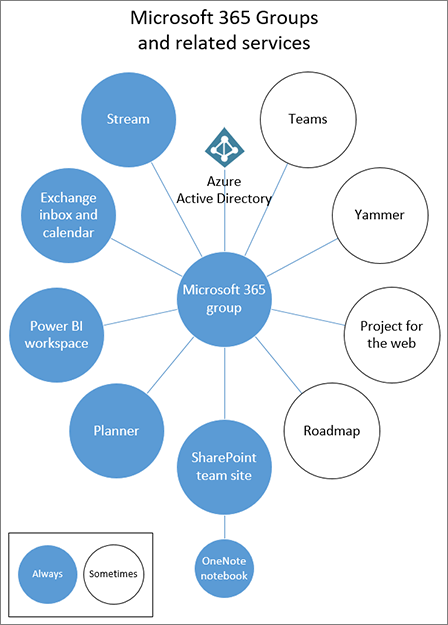
In addition, because Teams supports working across the Microsoft 365 suite, each Team creates a new Microsoft 365 Group which then spawns a host of supporting spaces including an Outlook group, SharePoint Team site, Calendar, Planner board and more. IT Admins may periodically clean up unused Teams but this will not delete these corresponding shared spaces.

This poses a security risk because it’s difficult to manage security for these orphaned Outlook groups and SharePoint sites.

Teams governance is essential to maintain productivity and security.

Microsoft 365 Groups and related services

Teams Governance to prevent sprawl

1)    Define who can create Teams

The whole point of most cloud-based productivity services is that they provide freedom for users to connect and create, without dragging in IT every time they need to co-author a document. To try and find a balance between total anarchy and Orwellian control, make sure you educate your users on the above risks and circulate a checklist of actions to complete before a new Team is created.

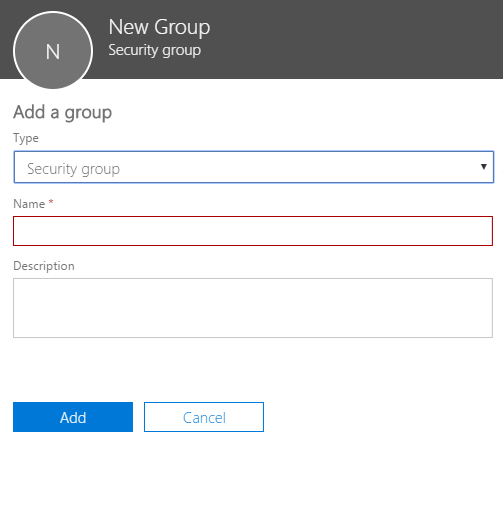
Adding a new Teams security group

You also have the option to restrict Group creation  to the members of a Microsoft security group.

1. From the Groups page of your admin centre, create a new group

2. Choose security as the group type and make a note of the Group name.Add users or existing groups - members will require Azure AD premium or Azure AD Basic EDU licenses.

3. Complete the setup.

4. Use PowerShell to run commands (available in Microsoft 365 support pages) to manage group creation restriction. This is where you will need your Group name.

5. Check the set-up by signing in as a non-Group member and trying to create a new Team.

NOTE: Limiting Group creation also  impacts the services that rely on groups for provisioning, including Outlook, SharePoint, Planner, PowerBI, Yammer and of course Teams.

2)    Teams Naming Conventions

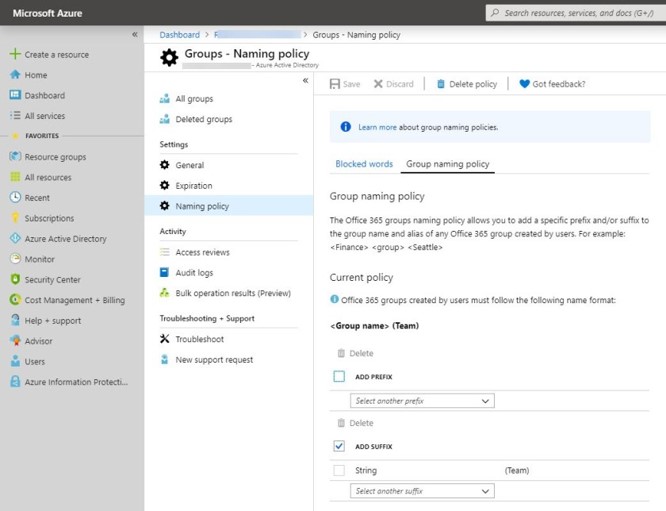
Maintain Teams hygiene by using Azure AD naming policy for Microsoft 365 Groups. Team names can identify purpose, membership, location and more. Effective Team names prevent duplicates – if it’s clear what a Team is for, it’s less likely a new one will be set up for a similar function.

A Microsoft Group naming policy is not just something you create and then email around – it’s an actual set-up in your Microsoft tenant. You can require prefixes and suffixes, and block certain words from being used. Check out Microsoft’s useful guide to group naming policies.
 

3)    Team Ownership

Within Microsoft Teams there are two user roles: owner and member. If someone creates a new Team, they are by default the Owner and have the ability to edit the Team name, add members and delete the Team.

Teams with confidential information can have Owner Members rather than owners, so that no individual user has control. To help with management of this Team, you might set up a process where any changes to this Team need to be submitted via Helpdesk.

4)    Use it or lose it

The key to preventing zombie SharePoint sites and Planner boards piling up in an admin nightmare is Group expiration. When a group expires, its connected services (email, Team, Planner, SharePoint etc) are also deleted. Group expiry is set in days and Groups that are in use are automatically reactivated. Even when expiry comes around it’s not 100% final and results in ‘soft deletion’ so it can be recovered for up to 30 days if you suddenly need it back.

Expiration is turned off by default so if you want to activate it, read Microsoft’s 356 Groups Expiration Policy.

Teams Sprawl Checklist

Is this all a bit much? Here’s a handy checklist to help break the elephant down into bite size pieces.

  1. 1. Get buy-in from senior leaders by convincing them of the very real risks to productivity, efficiency and security that Teams sprawl can pose.
  2. 2. Create a plan and communicate this clearly to the organisation to manage user expectationsaround Team creation and expiration.
  3. 3. Implement the expiration policy to start cleaning out the dead wood.
  4. 4. Determine and set up naming conventions.
  5. 5. Enjoy your clean and sparkling Teams environment!

We hope you found this information helpful. If you have any questions you can Contact Us or for more Teams support, we offer Teams Training.